
Writing PLC control signals when conditions are met
Purpose
Section titled “Purpose”Write control signals or instruction values to a PLC when values collected from the PLC meet specified conditions.
Project files
Section titled “Project files”These are the project files used in this example. A standard version and a version with the PLC Collector configured in simulation mode are available.
Note: Import requires SpeeDBee Synapse version 4.9.9 or later.
What you will learn
Section titled “What you will learn”- How to use data collected from a PLC for condition evaluation
- How to use the Compute Collector to evaluate a condition based on multiple collected values
- How to use the Event data component to output data for writing only when a condition is met
- How to use the PLC Writing component to write a value to a specified PLC address
Requirements
Section titled “Requirements”Collect equipment status and measurement values from a PLC, then write a control signal to the PLC when the condition is met.
For this example, assume the following data is collected from the PLC.
| Data name | Example address | Data type | Description |
|---|---|---|---|
operation_mode | D0100 | WORD | Operating mode. 1 indicates automatic operation. |
temperature_c | D0101 | WORD | Temperature (degrees C) |
pressure_kpa | D0102 | WORD | Pressure (kPa) |
When the condition is met, write a control signal to W100.00 in the PLC.
| Example write address | Data type | Value to write | Condition |
|---|---|---|---|
W100.00 | BIT | 1 | operation_mode = 1 and temperature_c >= 80 and pressure_kpa >= 500 |
Components used
Section titled “Components used”- PLC Collector (collects data used for condition evaluation)
- Compute Collector (evaluates the write condition based on multiple collected values and outputs
1or0) - Event data (outputs data to the subsequent component only when the Compute Collector output is
1) - PLC Writing (writes to the PLC when triggered by data from Event data)
Workflow
Section titled “Workflow”- Collect
operation_mode,temperature_c, andpressure_kpawith the PLC Collector. - Use the Compute Collector to output
result = 1when all collected values meet the write condition, andresult = 0otherwise. - Use the Event data component to output a value only when
result = 1. - When
resultis received from Event data, use the PLC Writing component to write1toW100.00.
The data flow is shown below.

-
Configure the PLC Collector. Specify the PLC connection target, collection interval, and addresses to collect so the data required for condition evaluation can be collected.
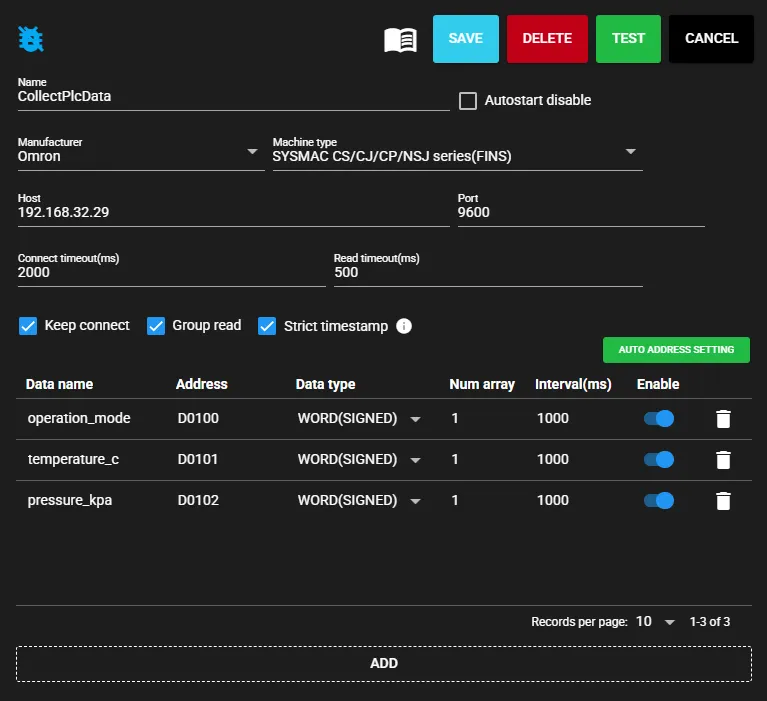
Data name Example address Data type operation_modeD0100WORDtemperature_cD0101WORDpressure_kpaD0102WORD -
Add a Compute Collector and connect it to the PLC Collector. When registering a new Compute Collector, a dialog appears to select the component to connect to the input port. Select the PLC Collector configured in step 1 and click CONNECT.
Note: The PLC Collector must be running before it can be selected. Start it in advance using the ▶ button if necessary.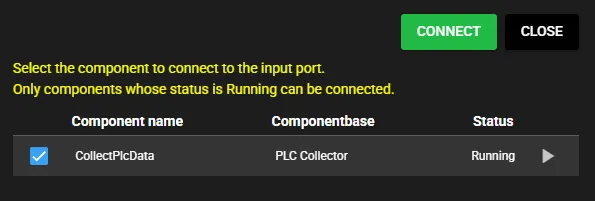
-
Configure the input data and formula for the Compute Collector. First, assign the data received from the PLC Collector to
$A,$B, and$Cin the input data settings.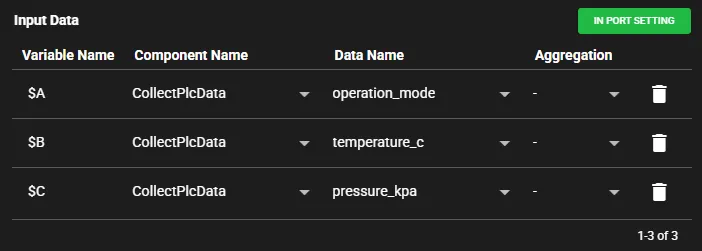
Variable Input data $Aoperation_mode$Btemperature_c$Cpressure_kpaSet the following formula and set the output data name to
result. The component outputs1when$A,$B, and$Call meet the condition; otherwise, it outputs0.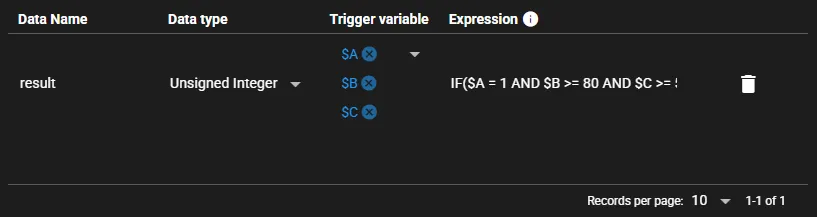
Output data name Formula resultIF($A = 1 AND $B >= 80 AND $C >= 500, 1, 0) -
Add an Event data component and connect it to the Compute Collector. When registering a new Event data component, a dialog appears to select the component to connect to the input port. Select the Compute Collector configured in the previous step and click CONNECT.
Note: The Compute Collector must be running before it can be selected. Start it in advance using the ▶ button if necessary.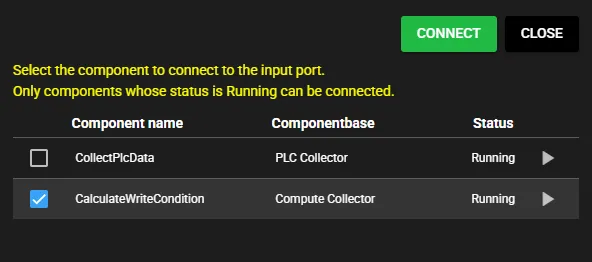
-
Configure the Event data component to output
resultto the subsequent component when theresultreceived from the Compute Collector is1. Selectraiseas the condition type and specify$VALUE = 1as the condition expression ($VALUE = result). This outputs data only whenresultchanges from0to1.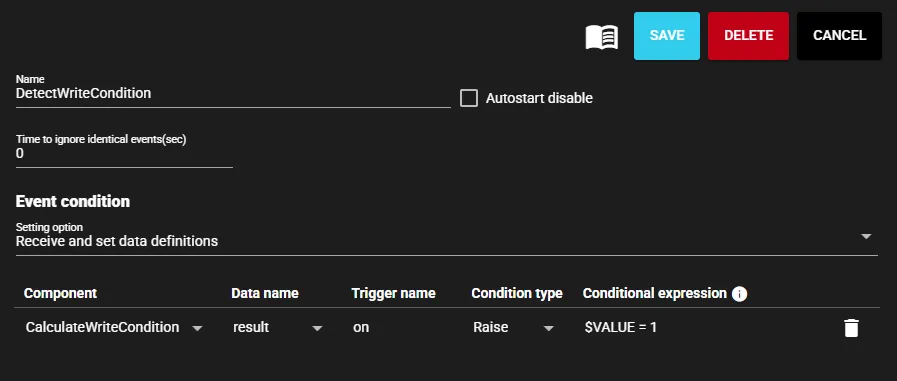
Input data Condition type Condition expression CalculateWriteCondition:resultraise$VALUE = 1Do not pass data to the PLC Writing component while the condition is not met. This causes PLC writing to be performed only when the condition is met.
-
Add a PLC Writing component and connect it to the Event data component. When registering a new PLC Writing component, a dialog appears to select the component to connect to the input port. Select the Event data component configured in the previous step and click CONNECT.
Note: The Event data component must be running before it can be selected. Start it in advance using the ▶ button if necessary.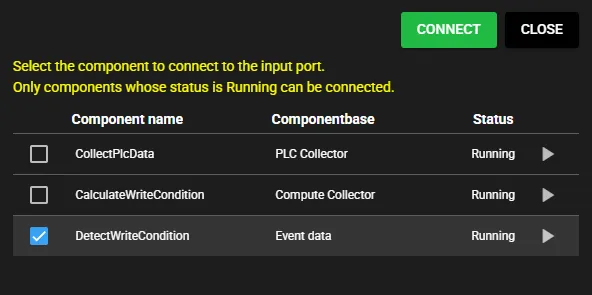
-
Select the PLC to write to as the connection target. Assign
result, which is output from the Event data component, as the input data. Configure the component to write the fixed value1toW100.00whenresultis received.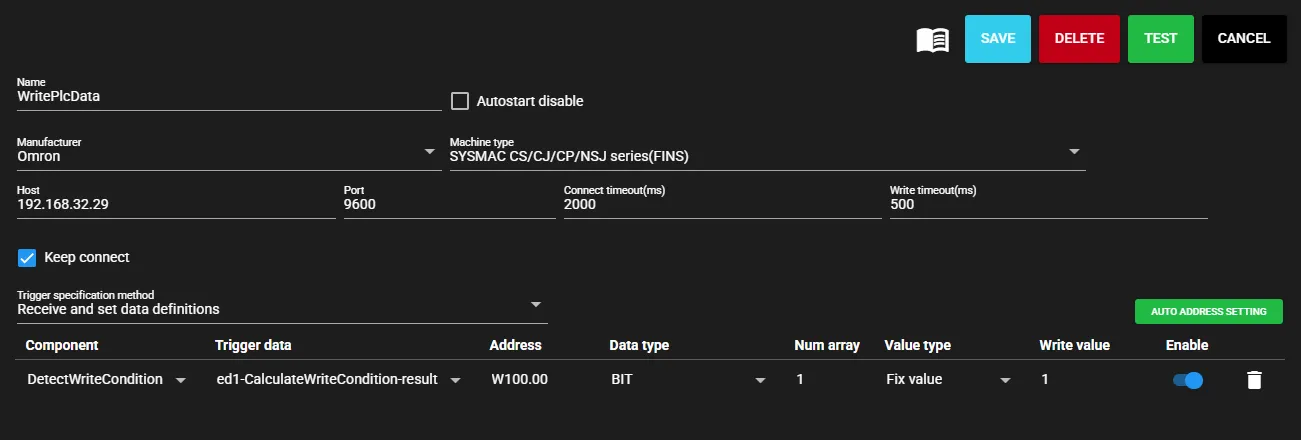
Trigger data Example write address Data type Fixed value to write DetectWriteCondition:ed1-CalculateWriteCondition-resultW100.00BIT1 -
Configure the delay time in the input port settings of the PLC Writing component. When components such as the Compute Collector and Event data are used in the flow, a delay occurs before data reaches the PLC Writing component. Set a delay time to shift the input data search range by that delay. In this example, set it to
6000ms. For details about the delay time, see Delay time.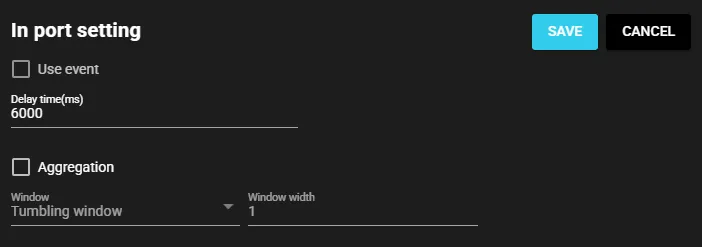
-
Save the settings and start each component.

Operation check
Section titled “Operation check”Change PLC values and confirm that 1 is written to W100.00 when the condition is met.
Check the output data from the PLC Collector and Event data component. Confirm that Event data outputs result(1) only when the condition is met. In the following example, result(1) is output at 10:53:57.
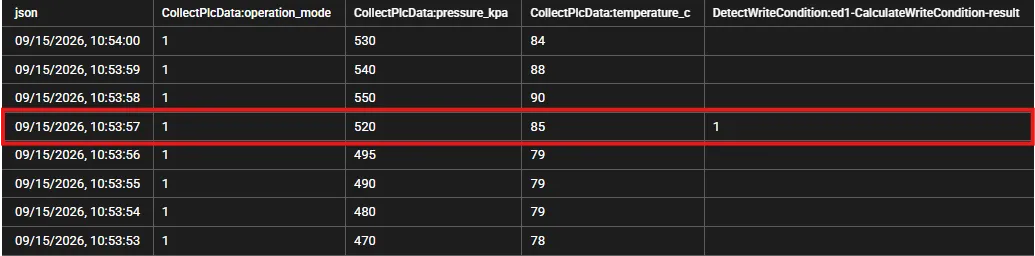
Next, check the PLC Writing component log.
Confirm that the log shows writing was performed at 10:54:04.594, approximately 7 sec after result(1) was output at 10:53:57.
This approximately 7 sec interval includes the configured 6000ms delay time and other processing time.

Delay time
Section titled “Delay time”If the actual delay before the data arrives is longer than the configured delay time, subsequent components may not be able to retrieve the input data. This occurs because the output data is delayed and no longer falls within the input data search range of the subsequent components. If the input data cannot be retrieved, subsequent components do not perform processing such as output and writing. The delay time shifts this search range. Set it based on the delay before the data arrives.
For an Event data component, use the DEBUG log as a guide for the delay time.

In this example, the approximately 4.1 sec difference between the insert time and the timestamp assigned to the data is the delay. In this example, allowing for this time and setting the delay time to approximately 6000ms enables the input data to be detected.
| Insert time | Assigned timestamp | Diff |
|---|---|---|
2026-09-15T09:47:27.183 | 1789433243063622411 (2026-09-15T09:47:23.064) | 4.119s |
2026-09-15T09:47:42.192 | 1789433258063622411 (2026-09-15T09:47:38.064) | 4.128s |
2026-09-15T09:47:57.200 | 1789433273063622411 (2026-09-15T09:47:53.064) | 4.136s |